Panduan · 6 min read
Product Upload Guide: Drop a Poster, PDF or Link — AI Fills Your Live Q&A and Script
Pasukan LiveFluencer.AI · Panduan Produk ·
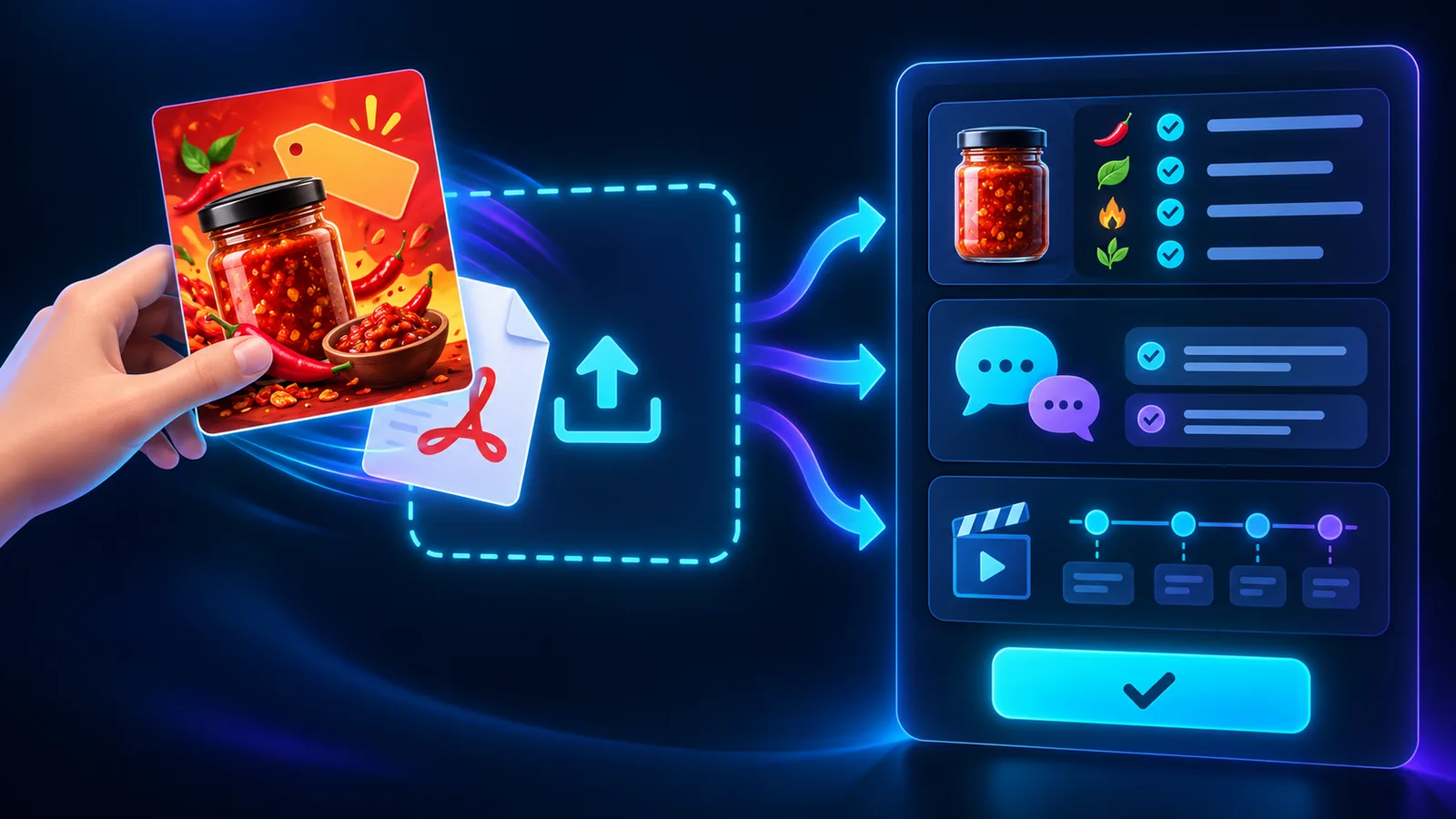
An AI host can only sell well if it knows your product: name, price, promo, size, how to use it and how to order. You used to type all of that into the Q&A bank one entry at a time. Now there's an easier way: upload the product material you already have and let AI fill it in.
Where is the Your product box?
Open Go Live, complete step 1 (host photo and voice) and step 2 (host name and style). The Your product box is the first box in step 3, labelled "Easiest".
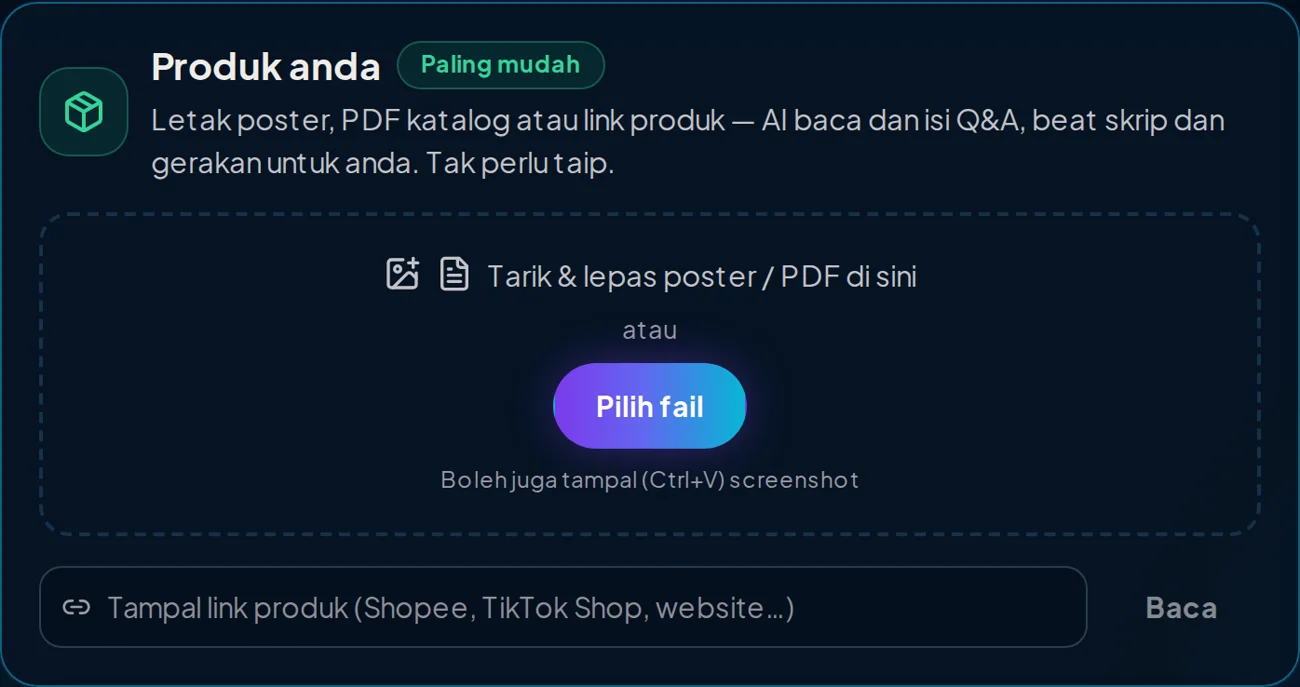
Four ways to add your product
1. Drag & drop a product poster or PDF catalogue straight into the box.
2. Press Choose files and pick up to 4 files at once: JPG, PNG or WEBP (up to 12 MB per image) or PDF (up to 15 MB).
3. Paste a screenshot with Ctrl+V anywhere in step 3. Handy when the product details are in WhatsApp, Instagram or a shop page.
4. Paste a product link and press Read. Normal websites can be read directly. Shopee and some shops block automatic reading; if you see "That link couldn't be opened", take a screenshot of the product page and paste it.
Scanned PDF catalogues (pictures, not text) work too: the AI reads their pages like images.
Check first, then generate
Within 10 to 60 seconds, the AI writes a list of Product facts: name, price (and the normal price if discounted), promo, size, benefits, how to use, shipping and how to order. Prices and numbers are copied exactly as written in your material. Anything not in your material isn't invented.
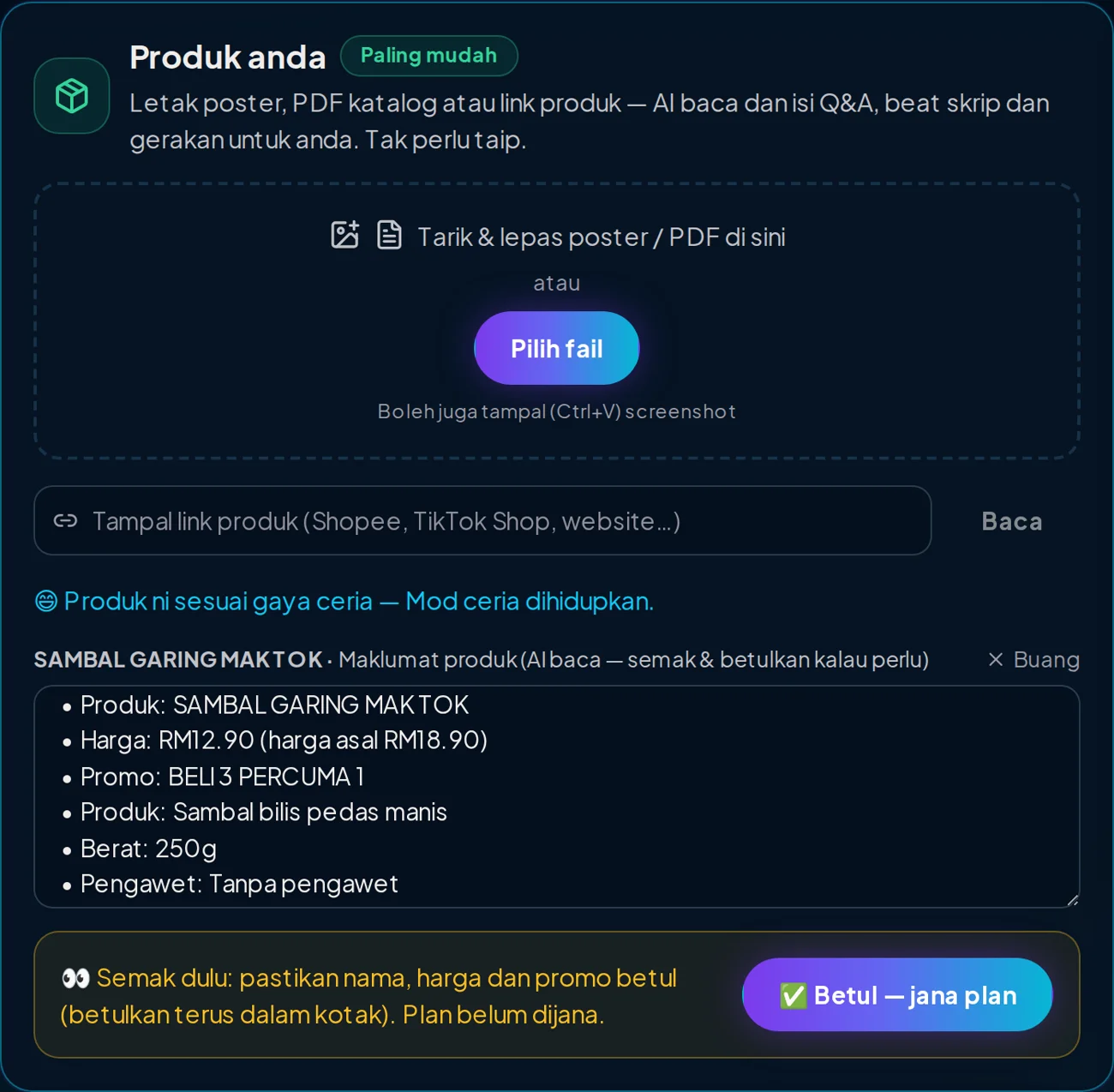
Nothing has been generated or saved yet at this point. The yellow "Check first" box reminds you to make sure the name, price and promo are right. If anything was misread (for example, a blurry poster), fix it right in the text box. You can add your own facts too, one per line.
If your product suits a cheerful style (food, beauty, fashion, gadgets, promos), the AI also turns on Cheerful mode so the host speaks in a happier voice. Read more in the Cheerful mode and Excited / Hype gesture guide.
Press Correct — generate plan
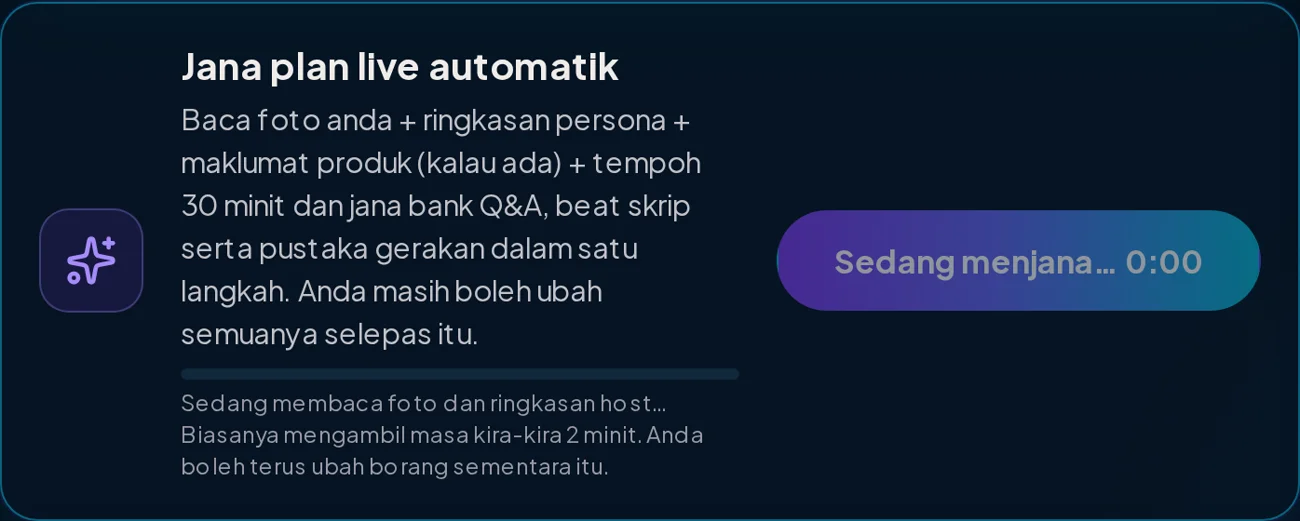
When everything is right, press "✅ Correct — generate plan". The AI builds a complete live plan from that product in about a minute:
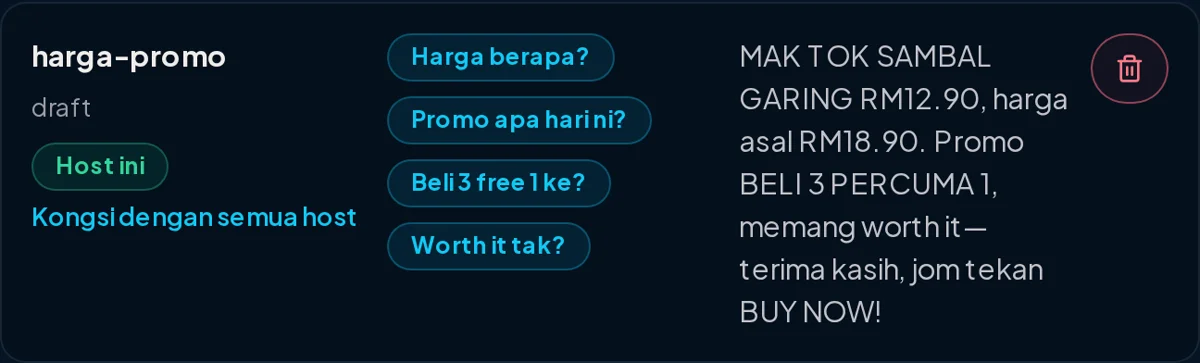
Q&A bank: 6 to 10 answers to the most common buyer questions — price, promo, stock, shipping, returns and how to order — with your product's real price and promo.
Script beats: the lines the host says through the live, including one promo beat with the Excited / Hype gesture and beats that explain the product with Natural hand gestures.
Motion Library: reactions to viewers who join, follow, like and send gifts.
If you already have beats, the button asks before replacing them. Existing Q&A answers aren't deleted.
Each host answers about its own product
The product facts are used during the live too. When a viewer asks something that isn't in the Q&A bank, the host uses these facts to answer. If the answer isn't there, the host says "DM for details" rather than making something up.
Every Q&A answer belongs to the host (photo) it was made for. If you sell several products with different hosts, each host only uses its own answers, so your sambal host won't quote another product's price.
Tips for the best result
Use a clear poster with a big price and promo. The more details in your material, the more complete the host's answers.
For products with many variants or sizes, add 2 to 4 images at once: the main poster and the price list.
After the plan is generated, read through the Q&A bank and script beats once more. You can change anything before you go live.
Save the setup as a template ("My templates") so this product and plan can be reused for your next live.
Test in the Simulator first (simulator sessions also use credits, so press STOP when done), then take it to a real TikTok live.
Try your own AI host
1 credit = 1 live minute. You know the cost before you start.