Panduan · 5 min read
How to Change the Background, Product and Shirt in Your Host Photo With ChatGPT (Copy-Ready Prompts)
Pasukan LiveFluencer.AI · Panduan Produk ·
The host photo is the first thing viewers see, and it stays on screen for the whole live. A messy room behind you, a shirt that doesn't match your brand, or last season's product in your hand can make a live look less professional. The good news: you don't need a new photo shoot. With the image generator in ChatGPT you can change the background, the product and the shirt in a photo you already have, in a few minutes.
This guide gives you prompts to copy and paste. Every example below was made with exactly these prompts (the Malay versions, using OpenAI's gpt-image-2 image model), on a fictional host photo, not a real person.
Before you start: a good original photo
An edit is only as good as the original. Use a vertical portrait photo (9:16), at least 720×1280 px, face towards the camera, bright light, no dark glasses. Use your own photo, or a host photo you have the right to use. Never use someone else's face without permission.
How to use ChatGPT, step by step
1. Open chatgpt.com or the ChatGPT app and sign in. 2. Tap the + button (or paperclip) and upload your photo. 3. Copy one of the prompts below, paste it and send. 4. When the image is ready, open it and tap download to get the full size. 5. Upload the new photo on the Go Live page under Face photo. The page shows the photo size so you know it fits the live frame.
ChatGPT's free plan has an image-generation limit. If you hit it, ChatGPT shows when you can try again; wait until it resets, or upgrade your plan.
The base prompt: keep the face
Every prompt below starts with the same sentence. It tells ChatGPT not to change your face. This is the most important part, so don't remove it.
Edit this photo. Keep this person's face, hair or hijab, skin tone, expression and body pose exactly the same as the original photo. Do not change who they are. The result must look like a real photo with matching lighting, vertical portrait 9:16 (1080×1920).
1. Change the background
Useful when the photo was taken at home or somewhere cluttered. A tidy studio background makes the host look like a real shop.
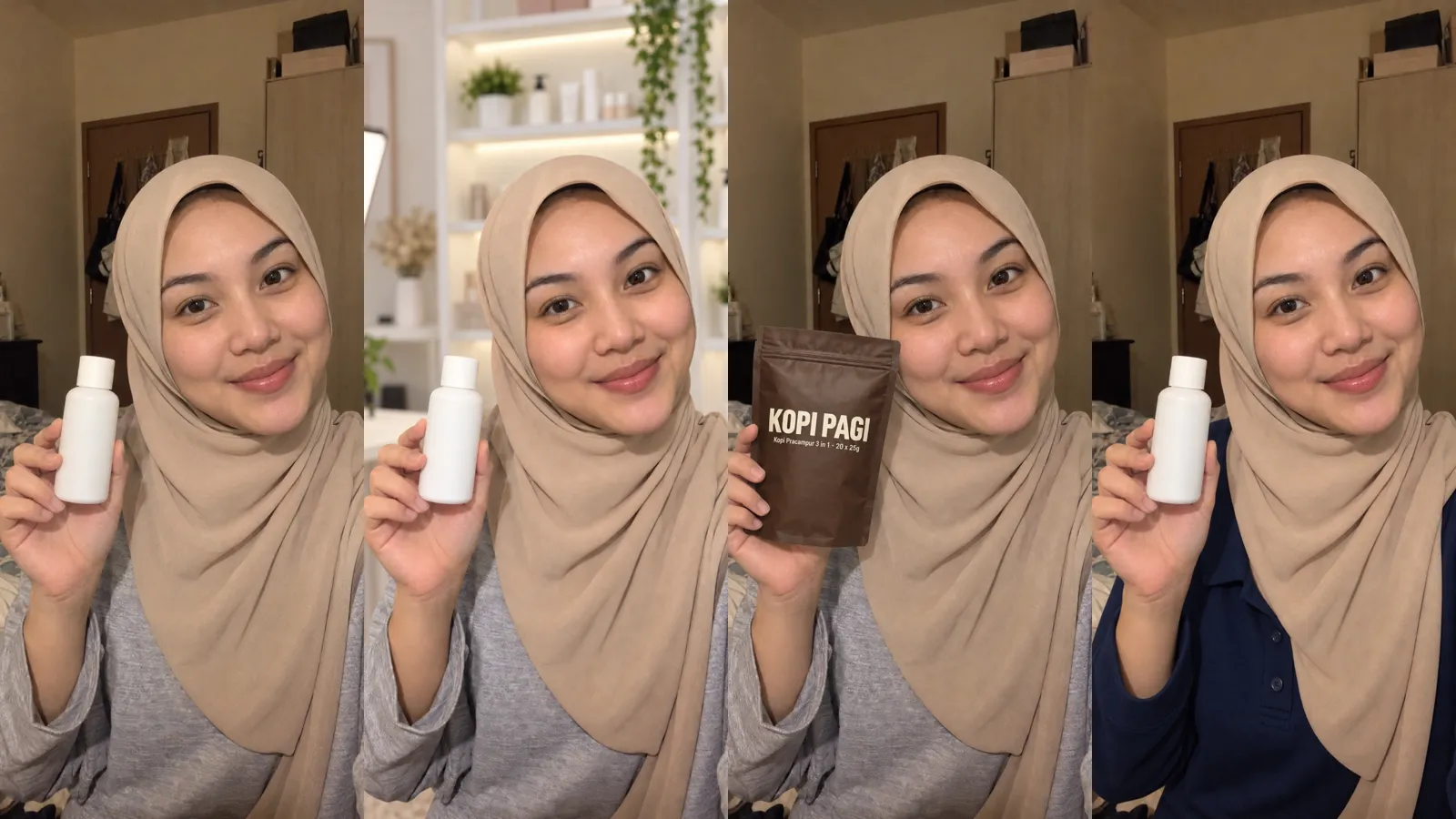
Edit this photo. Keep this person's face, hair or hijab, skin tone, expression and body pose exactly the same as the original photo. Do not change who they are. The result must look like a real photo with matching lighting, vertical portrait 9:16 (1080×1920). Change ONLY the background to: a bright, tidy live-selling studio, white shelves with neatly arranged products, soft light, background slightly blurred.
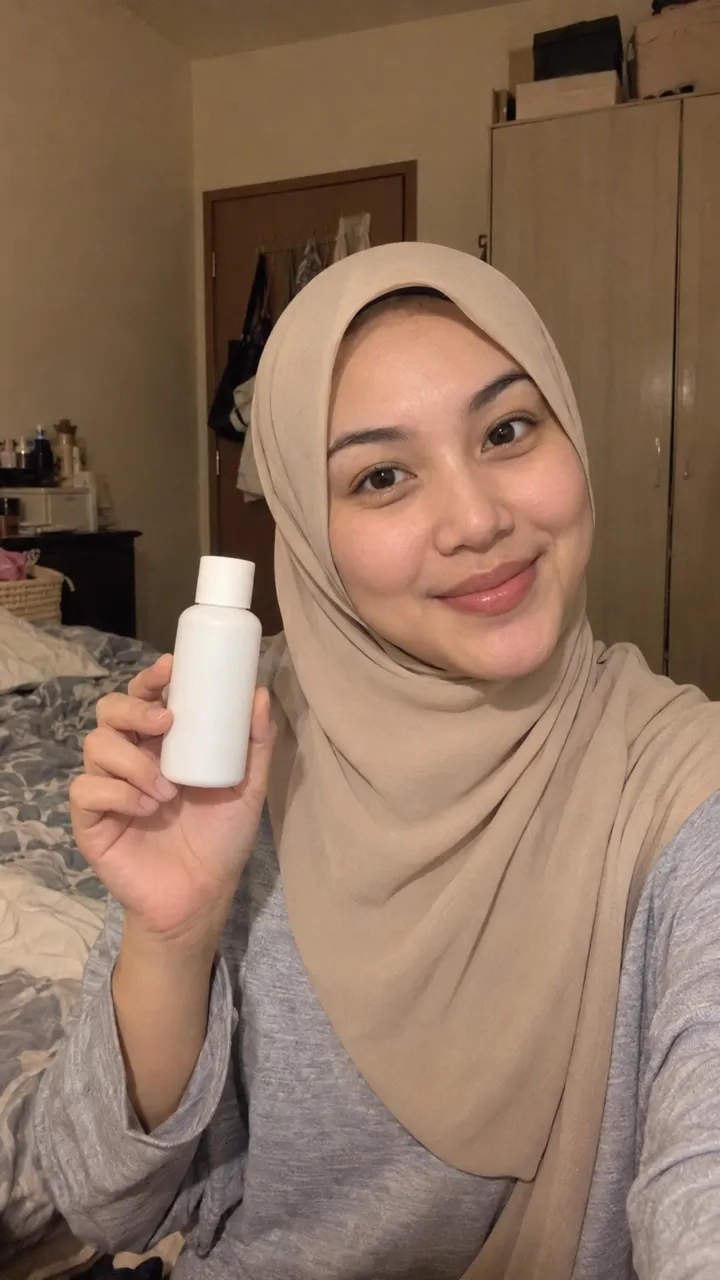 Before
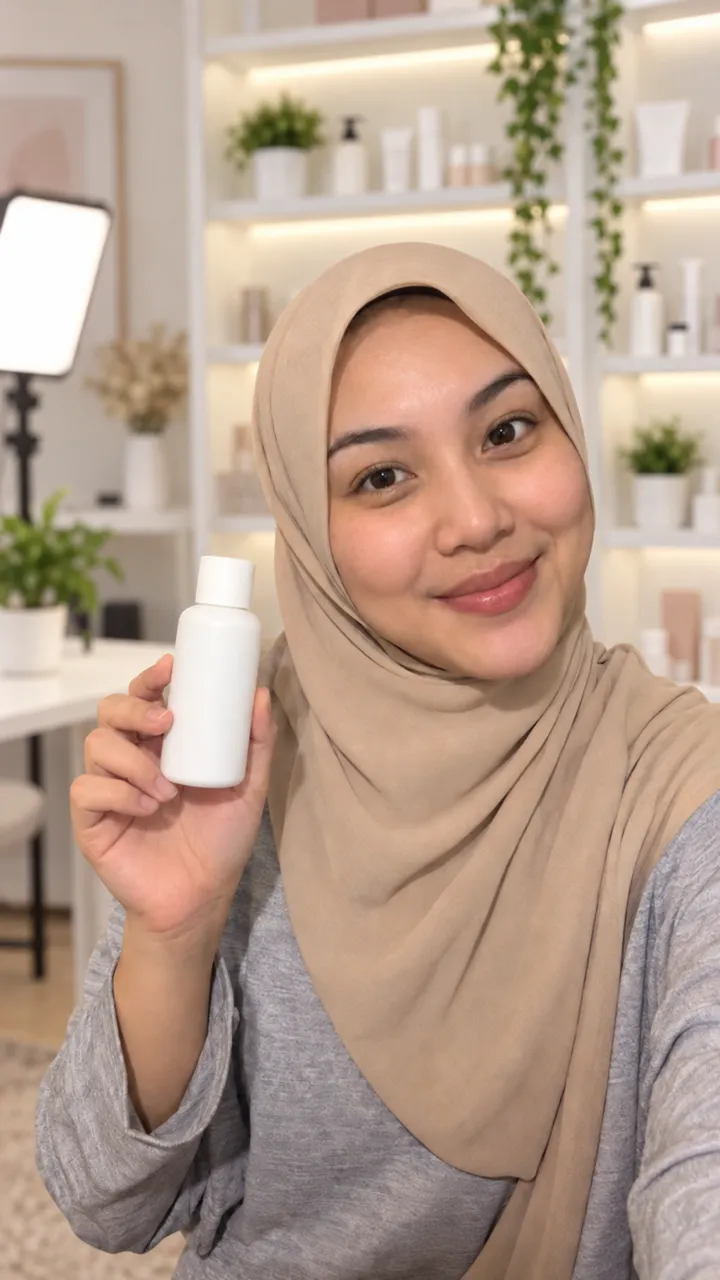 After
Change the description after "to:" to suit your brand, for example "a boutique with clothing racks", "a bright modern kitchen" or "a soft pastel backdrop".
2. Change the product in hand
For a product, upload TWO images in the same message: your photo first, then a photo of your real product (clear, label facing front). ChatGPT copies the product from the second image.
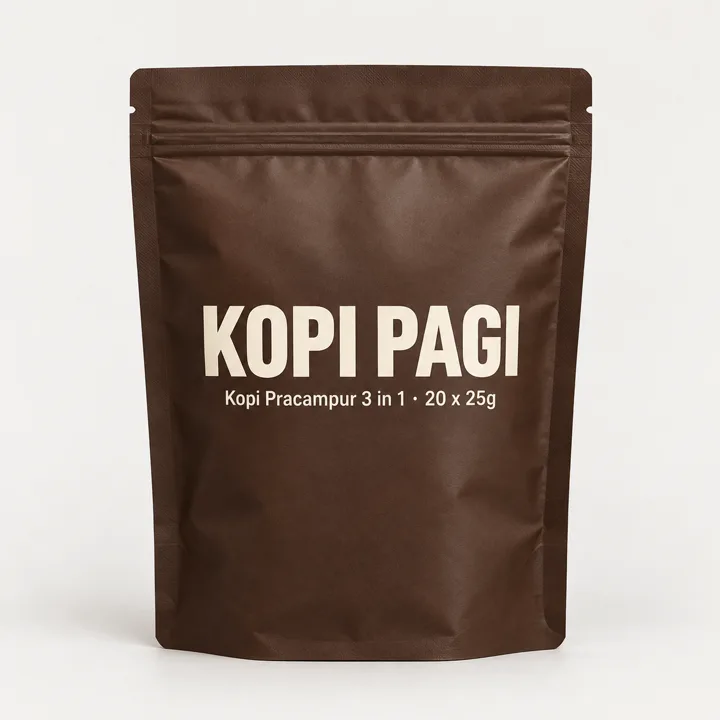
Edit this photo. Keep this person's face, hair or hijab, skin tone, expression and body pose exactly the same as the original photo. Do not change who they are. The result must look like a real photo with matching lighting, vertical portrait 9:16 (1080×1920). The first image is me, the second image is my product. Replace the item in my hand with the product in the second image. Keep the shape, colours and label text exactly as in the second image, label facing the camera. Hands and fingers must look natural.
Before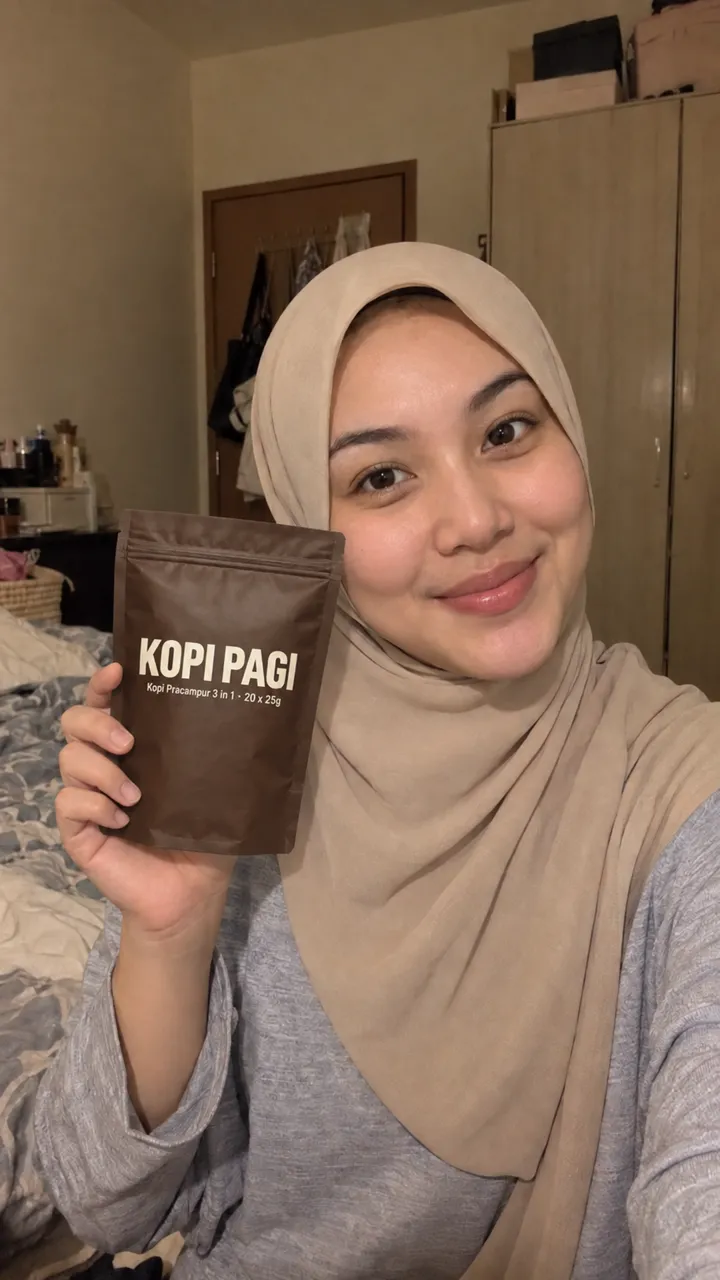 After
Always check the label text. AI sometimes misspells words or changes the design. The product in the photo must be the product you sell; never show a size, colour or feature the real product doesn't have.
3. Change the shirt
Useful for wearing your brand colours, or a smarter outfit for a campaign.
Edit this photo. Keep this person's face, hair or hijab, skin tone, expression and body pose exactly the same as the original photo. Do not change who they are. The result must look like a real photo with matching lighting, vertical portrait 9:16 (1080×1920). Change ONLY the shirt to: a neat dark navy polo shirt with no logo. Keep the hijab the same as the original.
Before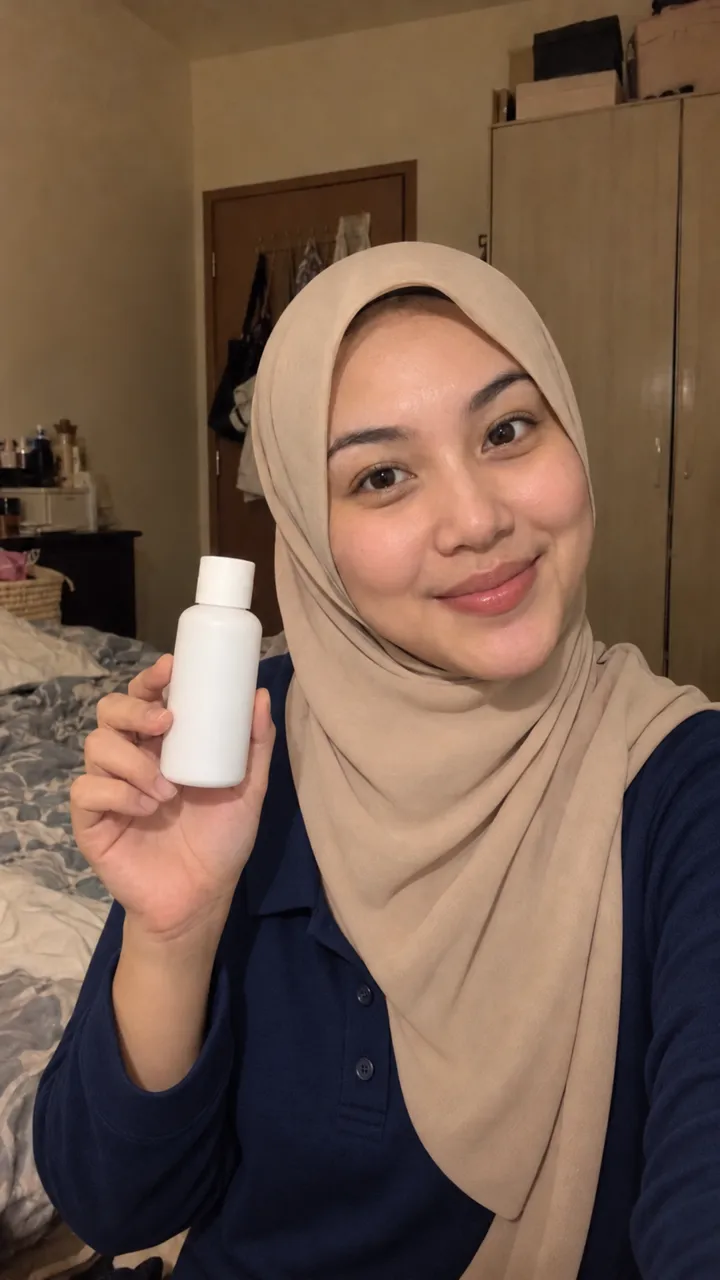 After
Change the shirt description as you need, for example "a modern emerald-green baju kurung" or "a white long-sleeved shirt". For a shop logo, it's safer to add it afterwards in a photo-editing app, because AI often draws logos wrong.
If the face changes
Make one change at a time. If the face, hijab or hands look different, reply in the same chat: "The face changed. Redo it and keep the face 100% identical to the original photo." If it still doesn't work, open a new chat and start again from the original photo, not the edited one.
Checklist before you upload
The face matches the original. Fingers look normal (count them!). The product label text is correct. The photo is vertical 9:16 and at least 720×1280 px. Nothing strange in the background. If all is good, upload it on the Go Live page and start your live.
A note on AI content
TikTok has rules about content that is generated or changed with AI. Make sure your live follows TikTok's community guidelines, including AI-content labels where required, and never mislead buyers about your product.
Try your own AI host
1 credit = 1 live minute. You know the cost before you start.